
This is the second of two posts on a DMCA-themed phishing kit. Part 1 covered the lure page - the fake "Copyright Claim Review" workflow, the homoglyphs, the anti-debug, the per-victim gating. This post covers what happens when the victim clicks "Sign in with Google".
At the end of part 1 we left the victim on a rendered copyright complaint panel, looking at a button labelled "Sign in with Google". When they click it, what appears looks for all the world like a Chrome popup window with a Google sign-in form in it. Title bar, address bar showing "accounts.google.com/v3/security/info?continue=...", green padlock, traffic-light buttons in the corner. The page behind it dims.
This is Browser-in-the-Browser. The technique is well-known, well-documented, and has been around since mr.d0x's original write-up in 2022. What makes this implementation interesting is how far it has been pushed. Most BitB implementations I see are sometimes functional but usually visually clearly something is up. That is not the case here, clearly someone has spent a lot of time getting this as polished as they can:
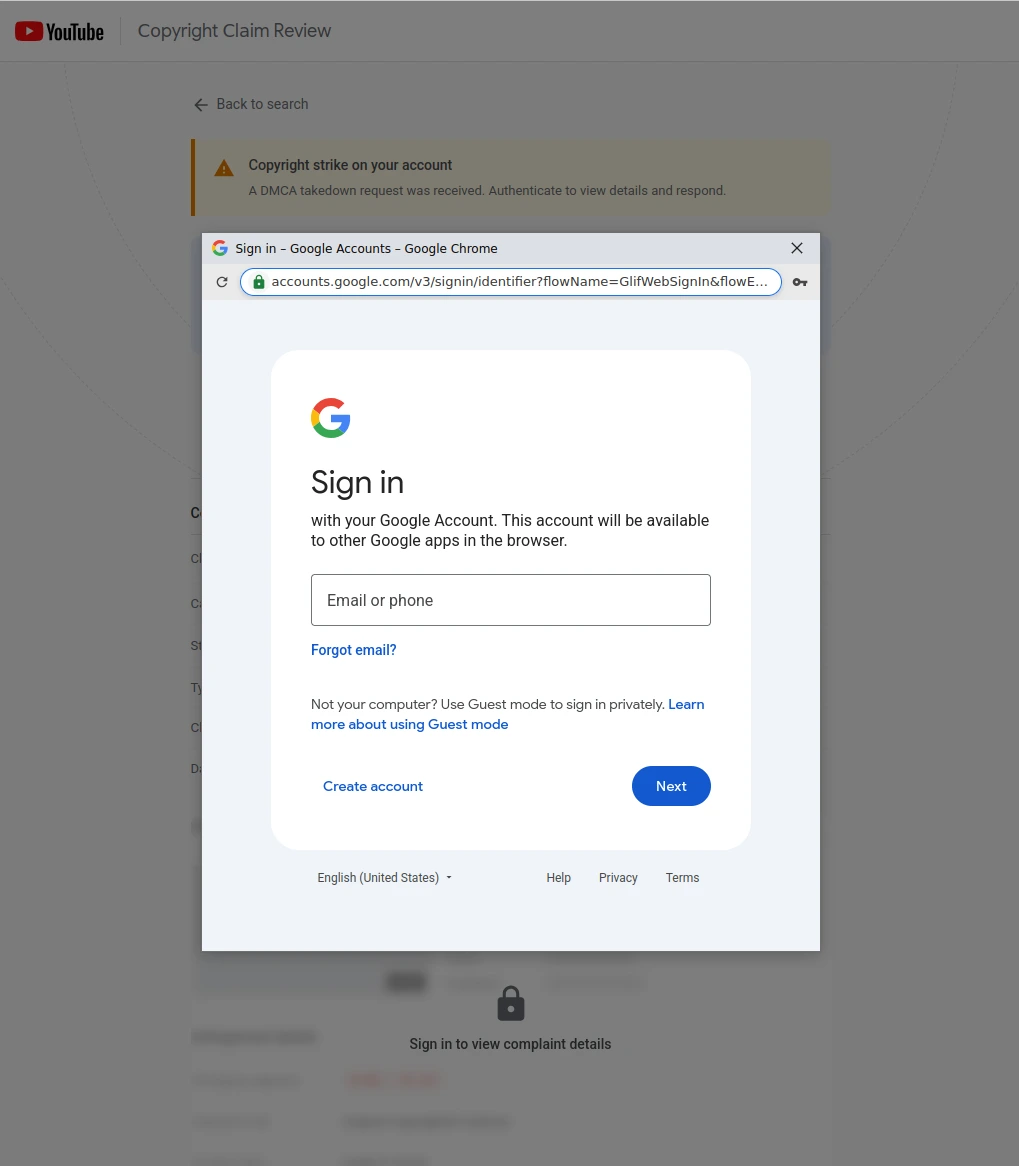
A reminder of what's actually going on: there is no popup. There is no Google. Everything you can see - the "window", the title bar, the address bar, the sign-in form inside it, the dimmed background - is HTML and JavaScript running on the lure domain. The "window" is a <div>. The "address bar" is a <div>. The padlock is an inline SVG. An awful lot of work has gone in to making this look as pixel perfect as can be. It even renders differently in different browsers.
Eight resize handles and a draggable title bar
The fake window has all the affordances of a real one. From app.html:
<div class="bitb-window" id="bitb-window">
  <div class="bitb-resize bitb-resize-n"  data-dir="n"></div>
  <div class="bitb-resize bitb-resize-s"  data-dir="s"></div>
  <div class="bitb-resize bitb-resize-w"  data-dir="w"></div>
  <div class="bitb-resize bitb-resize-e"  data-dir="e"></div>
  <div class="bitb-resize bitb-resize-nw" data-dir="nw"></div>
  <div class="bitb-resize bitb-resize-ne" data-dir="ne"></div>
  <div class="bitb-resize bitb-resize-sw" data-dir="sw"></div>
  <div class="bitb-resize bitb-resize-se" data-dir="se"></div>
  ...
</div>
Eight resize handles, one for each edge and corner. Grabbing the title bar drags the window around the screen. Clicking inside adds a focused class, clicking outside removes it - real OS windows lose their focused appearance when you click off them, and so the BitB does that too.
_0x5c91fa.addEventListener("mousedown", function (e) {
  if (!e.target.closest(".bitb-winbtn")) {
    isDragging = true;
    window.classList.add("dragging");
    setFocused();
    var rect = window.getBoundingClientRect();
    startX = rect.left; startY = rect.top;
    mouseX = e.clientX; mouseY = e.clientY;
    document.addEventListener("mousemove", onMove);
    document.addEventListener("mouseup", onUp);
  }
});
Before the sign-in form appears at all, there's a brief loading state with a spinner: <img src="google-loading.gif">. The window opens, the spinner shows for a moment, the form fades in.
OS-aware chrome
The kit ships a fingerprinting script that populates window.deviceInfo with the user's OS (windows/macos/android/ios/linux), browser (chrome/firefox/safari/opera/edge), and mobile/touch state. Another script reads that and adapts the BitB chrome to match. From the platform-styles applier:
if (deviceInfo.isMobile || deviceInfo.os === "android" || deviceInfo.os === "ios") {
  window.classList.add("bitb-mobile");
  ...
} else if (deviceInfo.os === "macos") {
  window.classList.add("bitb-macos");
  controls.innerHTML = '<button class="bitb-winbtn btn-close"...>' +
                       '<button class="bitb-winbtn btn-minimize"...>' +
                       '<button class="bitb-winbtn btn-maximize"...>';
} else if (deviceInfo.browser === "firefox") {
  window.classList.add("bitb-firefox");
  // ... and insert a Firefox-specific shield icon before the URL pill
} else {
  window.classList.add("bitb-windows");
  ...
}
The title bar text changes per browser:
if (deviceInfo.browser === "firefox") {
  titleText.textContent = "Sign in – Google Accounts — Mozilla Firefox";
} else if (deviceInfo.browser === "opera") {
  titleText.textContent = "Sign in – Google Accounts - Opera";
} else {
  titleText.textContent = "Sign in – Google Accounts – Google Chrome";
}
The address bar itself is a <span> containing static text:
<span class="bitb-url-text">
  https://accounts.google.com/v3/security/info?continue=AMbi0ORRJPdBjFasdakbo3wiIqkHBtqxFsopS...
</span>
It's not an input. You can't click on it and type. The trailing ... is hardcoded - it's standing in for a real long OAuth URL that's been truncated at the right edge.
Click the padlock
- Connection is secure - clickable, leads to a "Security" sub-page
- Cookies and site data - clickable, leads to a "Cookies and site data" sub-page
- Site settings - clickable, leads to a "Site settings" sub-page
From the Security sub-page, there's a "Certificate is valid" row. Click it and a Certificate Viewer dialog opens:
return {
  commonName: "*.google.com",
  orgIssued:  "<Not Part Of Certificate>",
  ouIssued:   "<Not Part Of Certificate>",
  cnIssuer:   "WE2",
  orgIssuer:  "Google Trust Services",
  ouIssuer:   "<Not Part Of Certificate>",
  issuedOn:   format(Date.now() - random(30..60) * 86400000),
  expiresOn:  format(issuedOn + 90 * 86400000),
  sha256Cert: randomHex(64),
  sha256Key:  randomHex(64)
};
There is one place it falls down. The dialog has two tabs - "General" and "Details" - and the Details tab is disabled:
<button class="ssl-cert-tab disabled" id="ssl-cert-tab-details" disabled>Details</button>
A real Chrome certificate viewer has a working Details tab showing the full cert structure: version, serial number, signature algorithm, extensions, the public key bytes. Reproducing that convincingly would have meant generating a syntactically plausible X.509 structure. Whoever built this either decided it wasn't worth the effort, or didn't want to risk getting it wrong, so they greyed it out.
The rest of the dialog is exact. The section headers ("Issued To", "Issued By", "Validity Period", "SHA-256 Fingerprints") match Chrome's. The <Not Part Of Certificate> placeholder text for the unset Organisation and OU fields is the exact phrasing Chrome uses for fields a certificate doesn't include.
Where it is less perfect
- You can't drag the window out of the page. A real popup is its own OS-level window. You can drag it onto a second monitor, behind the parent window, off the screen edge. A BitB is a <div> inside a webpage and it cannot leave the browser viewport. Try to drag the "popup" past the edge of the browser window. If it stops at the edge, it's not a real popup.
- The address bar can't be typed into. Click in the URL pill. Try to edit it. If nothing happens, it's a span, not an input.
- Window controls don't behave like the OS. On Windows, the maximize button should toggle between maximized and restored states. On a BitB, it doesn't.
The general point is that a BitB has to make claims about behaviour it can't actually deliver, because it doesn't have access to the OS. The polish on this kit gets it most of the way there visually, but the moment the user interacts with the fake window in a way that depends on it being a real window, the deception breaks. Whether a hurried YouTuber who's panicked about a copyright strike is going to try those interactions is a different question.
Closing thought
None of this is new. It's the same advice that was true when BitB first did the rounds back in 2022. The work that's gone into this kit doesn't change what the giveaways are - it just means a victim has to actually try the giveaways before they'll catch them out, rather than seeing something obviously off the moment the window pops up. Most won't think to try.